
–
This article is intended to provide you with answers to Frequently Asked Questions (FAQ). In this article we cover as much of the what, why, and how of purchasing, implementing, and using your YubiKey. We hope that after reading this you will have a greater understanding of how to use the YubiKey.
What is a YubiKey?
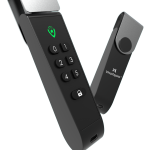
The YubiKey is a form of two-factor authentication (2FA) that functions as an extra layer of security for your online accounts by providing a strong phishing defense using multi-protocol capabilities that can secure legacy and modern systems.
Two-factor authentication is a method to confirm a user’s claimed online identity by using a combination of two different types of factors. Factors used for 2FA include something that you know (e.g. password or PIN), something that you have (e.g. a security key or phone) or something that you are (e.g. facial recognition). To learn more about two-factor authentication
With a YubiKey, you simply register it to your account and then when you log in, you are prompted to input your login credentials (username + password) and use your YubiKey (plugged into a USB-port or scanned via NFC). Both login credentials and the YubiKey are required at login, which ensure that this physical layer of protection prevents many account takeovers that can be done virtually.
A single YubiKey has multiple functions for securely authenticating into your email, online services, apps, computers, and even physical spaces. The versatility of the YubiKey requires no software installation or battery and therefore it is ready to use directly out of the package. Just login to the service you want to secure and register the key with your account, utilizing whichever security protocol(s) the service supports.
Which YubiKey should I buy?
You should select your YubiKey based on the services (e.g. websites and/or applications) and devices you want to use the key with. For additional assistance choosing the right YubiKey, refer to How to select the correct YubiKey.
How do I set up my YubiKey with a service?
Refer to the Yubico setup page for instructions on how to setup your YubiKey with a service or follow the guide below.
The YubiKey works with hundreds of enterprise, developer and consumer applications out-of-the-box, and with no client software required. Furthermore, as it is up to the service provider on how they implement support for the YubiKey, the setup instructions differ from service to service. In the step-by-step instructions below, the most common way of registering your YubiKey with a service is covered.
Tip: For optimal user experience, the initial setup of your YubiKey should be completed on a computer. Additionally, setting up both your primary and secondary YubiKey at the same time is highly recommended. For more information on spare keys, see this page.
- Have your YubiKey accessible as well as any spare keys
- Log in to the service (e.g. website or application) you want to add the YubiKey to – make sure the service supports YubiKeys
- Find the account settings of the service and then look for security. From there, look for an option for two-factor authentication, two-step verification, multi-factor authentication or adding security keys.
- Follow the instructions provided by the service
- Register your primary YubiKey and any spare keys
Where can I buy YubiKeys?
There are several different places you can purchase YubiKeys. Below are our most popular purchasing options:
- Official Yubico webstore
- Yubico-authorized resellers like Vina Aspire…
Is it important to have a spare key?
It is highly recommended to have more than one key. This way, one key can be used as a primary key, and the other can be used as a spare key, just as you would for your house or car.
Having a spare key offers the assurance that if you lose your primary key, you will not be without access to critical accounts when needing them most. In other words, with a spare key, you have no need to fear being locked out of accounts and no need to go through a lengthy recovery and identity verification process to regain access to each account.
There are a few ways to register a spare key, and you should register your spare key at the same time as your primary key. The process is different depending on if the service supports FIDO2/passkeys, time-based one-time passwords (e.g. authenticator apps), or another another security protocol.
To see which security protocols the service or application supports, refer to the Works with YubiKey Catalog. A good point to keep in mind is that any service that supports FIDO2/passkeys, spare keys can be registered exactly the same way as your the primary key.
If the service supports time-based one-time passwords (e.g. authenticator apps) which requires the use of the Yubico Authenticator application to generate codes to login, then the process is a bit different. Refer to Using your YubiKey with authenticator codes for more information.
What happens if I lose my YubiKey?
Best practice is to always have a backup YubiKey wherever possible, and for scenarios where backups aren’t supported, to ensure you understand the account recovery policies for each service you are securing. However, if you do not have a spare key and lose your YubiKey, we encourage you to have another form of 2FA added to your accounts to prevent potentially being locked out.
Warning: If something happens to your YubiKey and you have no backup or recovery options to regain access to your account(s), you will need to contact the service provider(s) directly for account recovery assistance. Yubico has no optics into third party account access or any ability to assist in account recovery.
How do I know if the YubiKey is compatible with my services?
Yubico provides the Works with YubiKey catalog to search for websites, services, identity providers and applications known to support YubiKeys for two-factor authentication. This resource is in no way exhaustive, but provides a good frame of reference when planning to secure access to your digital accounts. For services not found in the catalog, consider reaching out to the service to confirm whether they support the YubiKey, and referencing Yubico’s complimentary assistance and resources to companies choosing to integrate YubiKey support into their solution here.
Can I duplicate my YubiKey?
For security reasons, the YubiKey firmware does not allow stored secrets to be read, meaning it is not possible to “clone” or “duplicate” a YubiKey. In general, the process of creating a backup involves manually registering a spare key with all services the first YubiKey is registered with. However, there are a few credential types that, if backed up at the time of programming, can be programmed into a second key at a later date (using the spare/saved copy of the credential). For more information, refer to this article on spare keys.
Can I use my YubiKey to protect my computer login?
You can use a YubiKey 5 Series, Security Key Series, or YubiKey Bio – FIDO Edition to protect data with secure access to computers. Yubico offers several computer login choices for organizations and individuals. Refer to this link and select your preferred computer login tool for an in depth setup guide.
Note: A YubiKey 5 Series or YubiKey 5 FIPS Series is required for most computer login tools.
What is a YubiKey PIN?
Listed below are the basics of YubiKey PINs. If you want to read more about YubiKeys and PINs, refer to this article.
- A YubiKey can have up to three PINs – one for its FIDO2/passkey function, one for PIV (smart card), and one for OpenPGP.
- The PIV and OpenPGP PINs are set to 123456 by default, but there is no FIDO2 PIN set from the factory.
- If you are being prompted for a PIN (including setting one up), and you’re not sure which PIN it is, most likely it is your YubiKey’s FIDO2 PIN.
- If you are using a device from the Security Key Series, FIDO2/passkey is the only PIN you will be prompted for, as the Security Key Series does not support PIV (smart card) or OpenPGP.
-
Shown below is an example of what a prompt to create a FIDO2 PIN on a YubiKey might look like in the Windows operating system.

–
What are passkeys?
The term passkey is an amalgamation of the terms password and key, a simple but subtle way of highlighting its utility as an authentication mechanism as familiar and ubiquitous as the traditional password, but invoking the imagery of reliability associated with a sturdy lock and a physical key. A passkey is a passwordless digital credential utilizing the FIDO2 standard, allowing users to authenticate faster, easier and more securely to websites and applications than traditional passwords or weaker forms of multi-factor authentication. Passkeys can be created and stored on mobile devices, computers, hardware security keys and even synchronized to vendor cloud platforms. For more information, refer to this page.
Can I use a YubiKey with my iPhone?
You can use iPhones 7 through 14 with compatible YubiKeys that have a Lightning connector or NFC. Beginning with the iPhone 15, you can use compatible YubiKeys that have a USB-C connector or NFC. The NFC on older iPhone models (pre-7) only works with Apple Pay. To work with a YubiKey, the NFC must have read and write capabilities (pre-7 only supports read). iPhones older than the iPhone 7 are only compatible with the YubiKey 5Ci (through the Lightning connector).
Can I use a YubiKey with my iPad?
Warning: No iPad models support communicating with YubiKeys over NFC, so the YubiKey USB connector much match the model of your iPad and be directly connected to the iPad in order to use the YubiKey.
Do YubiKeys work with iPads with USB-C?
Yes, although it is important to confirm the YubiKey model’s USB connector matches your iPad – in this case, USB-C (for example YubiKey 5C, YubiKey 5C NFC, Security Key C NFC, etc. – look for C in the product name).
If using Yubico Authenticator, ensure your iPad is on at least iPadOS 16.1 and Yubico Authenticator version 1.7.0 or newer is installed.
Do YubiKeys work with older iPads (with Lightning ports)?
For iPads with a Lightning port, the YubiKey 5Ci and YubiKey 5Ci FIPS are the only models that will work.
If using Yubico Authenticator, ensure your iPad is on at least iPadOS 16.1 and Yubico Authenticator version 1.7.0 or newer is installed.
Is the YubiKey I purchased genuine?
You can verify if your YubiKey is genuine here.
Can I upgrade my YubiKey’s firmware?
It is currently not possible to upgrade YubiKey firmware after manufacturing. To prevent attacks on the YubiKey which might compromise its security, the YubiKey does not permit its firmware to be rewritten or altered.
Yubico is dedicated to providing a long-term two-factor authentication solution, and Yubico is committed to making the YubiKey remain useful for the full extent of its lifetime. When new software versions are released, Yubico strives to ensure the new software is backwards compatible with previous firmware releases and even legacy YubiKey models.
What is the YubiKey’s account storage limit?
The YubiKey 5 Series supports 6 different protocols for two-factor authentication, each with its own limit on the number of accounts it can be associated with. Which protocol will be used with a given account varies from service to service (website, application, identity provider, etc.).
You can find setup instructions, as well as which protocol(s) a particular service uses on that service’s entry in the Works with YubiKey catalog, (e.g. Google Accounts). The storage limits for each protocol are summarized below.
- FIDO2/Passkey – the YubiKey 5 can hold up to 100 discoverable credentials (i.e. hardware-bound passkeys) in its FIDO2 application.
- FIDO U2F – similar to Yubico OTP, the FIDO U2F application can be registered with an unlimited number of services.
- PIV* – the YubiKey 5’s PIV (smart card) application has 4 usable slots per the PIV specification, each serving a specific purpose (authentication, digital signature, key management, and card authentication – click here for more information). In a Microsoft Windows environment and used in conjunction with the YubiKey Smart Card Minidriver, the number of usable certificates expands to approximately 12 (dependent upon many factors including algorithm used as well as various certification authority settings).
- OATH-TOTP – the YubiKey 5’s OATH application can hold up to 64 OATH-TOTP credentials (i.e. authenticator codes).
- OTP – this application can hold two credentials. However, Yubico OTP, one of the most popular kinds of credentials to put in this app, can be registered with an unlimited number of services.The OTP application can hold a maximum of two of the following credentials:
- Yubico OTP
- Challenge-response
- Static password
- OATH-HOTP
- OpenPGP* – the YubiKey 5’s OpenPGP application can hold up to 3 subkeys (signature, encryption, authentication) linked to a single OpenPGP identity.
*OpenPGP and PIV are less-commonly used than OTP, U2F, FIDO2, and OATH, especially by consumers.
If you would like to know the account limits for a different Yubico product not listed above, such as the Security Key Series, refer to the device page for the specific model in the Yubico knowledge base Device Specifications section.
What is a security protocol?
A security protocol is a set of standards that establish a way of performing security operations, typically authentication (logging in) in the case of YubiKeys.
Modern YubiKeys support six separate functions (while the Security Key Series only supports two), some with support for multiple protocols, as conceptually visualized below.

–
How do I use Yubico Authenticator and YubiKey Manager?
Yubico Authenticator
Yubico Authenticator allows you to store your authenticator application credentials on your YubiKey rather than on a device so that your secrets cannot be compromised. Yubico Authenticator requires a YubiKey 5 Series to generate OTP codes, as the YubiKey does not contain an internal battery and therefore cannot tell time. Additionally, basic management capabilities have been added to this application to set and change the FIDO2 PIN (including on the Security Key Series), create OTP credentials, reset YubiKey applications, etc. More information about Yubico Authenticator and how to use your YubiKey with authenticator codes can be found in the links below:
Yubico Authenticator is available complimentary here. for all major platforms (Windows, macOS, iOS, iPadOS, Android, and common distributions of Linux)
YubiKey Manager (CLI)
YubiKey Manager (CLI) is an advanced command-line interface, cross-platform tool for managing and configuring YubiKeys. It is intended for administrators only, specifically useful for bulk programming YubiKeys. It supports scripting and other advanced functions. YubiKey Manager (CLI) is available on Windows, macOS, and Linux. A full user guide for YubiKey Manager (CLI) is available here.
YubiKey Manager (CLI) is available complimentary here.
My YubiKey is not working, what should I do?
To help identify several common issues with the YubiKey, you can follow the instructions listed below, depending on your device model:
Tip: Yubico devices use capacitive touch sensors, so if your skin is dry, it will be harder for a touch to be detected. Lotion may help this, and you can also try applying more pressure to make sure your finger covers more of the sensor.
Additionally, Yubico offers a number of troubleshooting articles covering various use cases and applications here.
If the above resources do not resolve the issue(s) you are experiencing, consider opening a support case here.
My YubiKey isn’t working over NFC, what should I do?
If you’re experiencing issues using our YubiKey over NFC, especially on a smartphone, the articles below cover troubleshooting NFC connectivity:
- Placement tips on using NFC YubiKeys with smartphones
- Troubleshooting NFC with YubiKeys and Security Keys
- How to disable the NFC tag pop-up in iOS
- Understanding the NDEF interface on NFC enabled YubiKeys
- Setting the NDEF slot for NFC usage
Where can I learn more about YubiKeys?
Yubico offers multiple resources for learning more about YubiKeys and supported software applications:
- Yubico support knowledgebase – Contains setup guides, troubleshooting articles, and various other resources.
- Yubico website – Provides a vast array of content covering use cases, cybersecurity learning, web store, white papers, case studies, best practice guides, blog, solution briefs, and various other topics, as well as software downloads.
- Yubico documentation website – Access to Yubico hardware technical manuals, software user guides, datasheets.
- Yubico developer website – Provides software downloads, detailed breakdowns of security protocols, implementation and integration guidance.
Vina Aspire is a consulting company that provides high-tech solutions and services in Artificial Intelligence, Cybersecurity, and Information Security in Vietnam and Southeast Asia. Vina Aspire’s team consists of talented experts and collaborators with strong qualifications, experience, and reputation, working together with major investors and partners both domestically and internationally to build and develop the company.
For businesses and organizations interested in reaching out to Vina Aspire, please follow the contact information provided below:
Email: info@vina-aspire.com | Website: www.vina-aspire.com
Tel: +84 9024 17606 | Fax: +84 28 3535 0668

Vina Aspire – Vững bảo mật, trọn niềm tin