|
OPTION 1 STAND-ALONE INSTALLATION
|
|
|
1. Installing Pipedata-Pro
- STEP 1
Download Pipedata_$_Setup.exe and save to a known and memorable location. $ = ‘version’ this is pre-set in the downloaded deployment.
- STEP 2
Click on Pipedata_$_Setup.exe to start the installation process.
- STEP 3
Follow the installation prompts until Pipedata-Pro is installed.
- STEP 4
The installation process puts a Pipedata-Pro shortcut on the desktop and in the Start ‘All Programs’ menu.
2. Registering Stand-Alone Pipedata-Pro
- STEP 1
Run Pipedata-Pro and Select ‘Register or Purchase Pipedata-Pro’ at the start-up window.
- STEP 2
Enter registration information. If registration is successful you will be taken straight into the software.
|
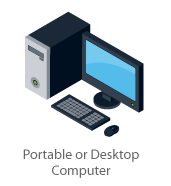
Stand-Alone Installation
|
|
OPTION 2 NETWORK LICENSE INSTALLATION
|
|
| A network license is automatically supplied as an option for order quantity of 3 or more users.
1. Installing the Network License Installer
- STEP 1
Save $users.exe, to a known and memorable location. $ = number of licenses bought in the case of a Global License this will say ‘Unlimited’.
- STEP 2
Click on $users.exe to start the installation process
- STEP 3
Follow the installation prompts until the NetLic Installer is installed.
- The installation process puts a NetLic shortcut on the desktop and in the Programs ‘Start’ menu.
2. Using the Network License Installer
- STEP 1
Manually create a folder on the network that has read access for all Pipedata-Pro users. This is where the license will be installed.
- STEP 2
Run the network license installer, enter your registration information and location of the network license and select ‘Proceed’.
- STEP 3
Receive message ‘Network license successfully installed at …
- STEP 4
Confirm three files created in the network folder: LIC80.SET, NETLIC80SVR.SET and USER80.SET.
3. Linking Pipedata-Pro to the Network License
- STEP 1
Install Pipedata-Pro as for stand-alone installation but without registering it.
- STEP 2
Run Pipedata-Pro and select ‘Connect to Network License’ at the start-up form
- STEP 3
Enter path to network license folder. Pipedata-Pro will open using the network license.
- STEP 4
Repeat the above three steps for all computers using the network license.
|
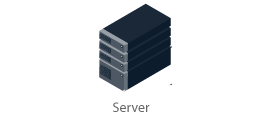
Network License Installation
Network license installed on the server
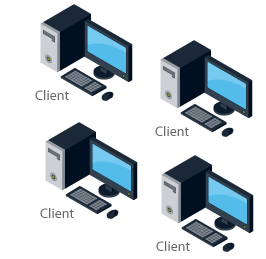
Each client uses the network license on the server. This allows concurrent use up to the number of licenses bought from any number of PCs.
|
Vina Aspire là công ty nghiên cứu, phát triển, tư vấn và kinh doanh trong lĩnh vực Công nghệ cao, Trí tuệ nhân tạo (AI), An ninh mạng, Bảo mật và An toàn thông tin, hoạt động tại Việt Nam, Đông Nam Á và từng bước vươn ra toàn cầu. Đội ngũ của Vina Aspire gồm những chuyên gia, cộng tác viên giỏi, có trình độ, kinh nghiệm và uy tín cùng các nhà đầu tư, đối tác lớn trong và ngoài nước chung tay xây dựng.
Các Doanh nghiệp, tổ chức có nhu cầu liên hệ Công ty Vina Aspire theo thông tin sau:
📧 Email: info@vina-aspire.com | 🌐 Website: www.vina-aspire.com
Vina Aspire – Vững bảo mật, trọn niềm tin